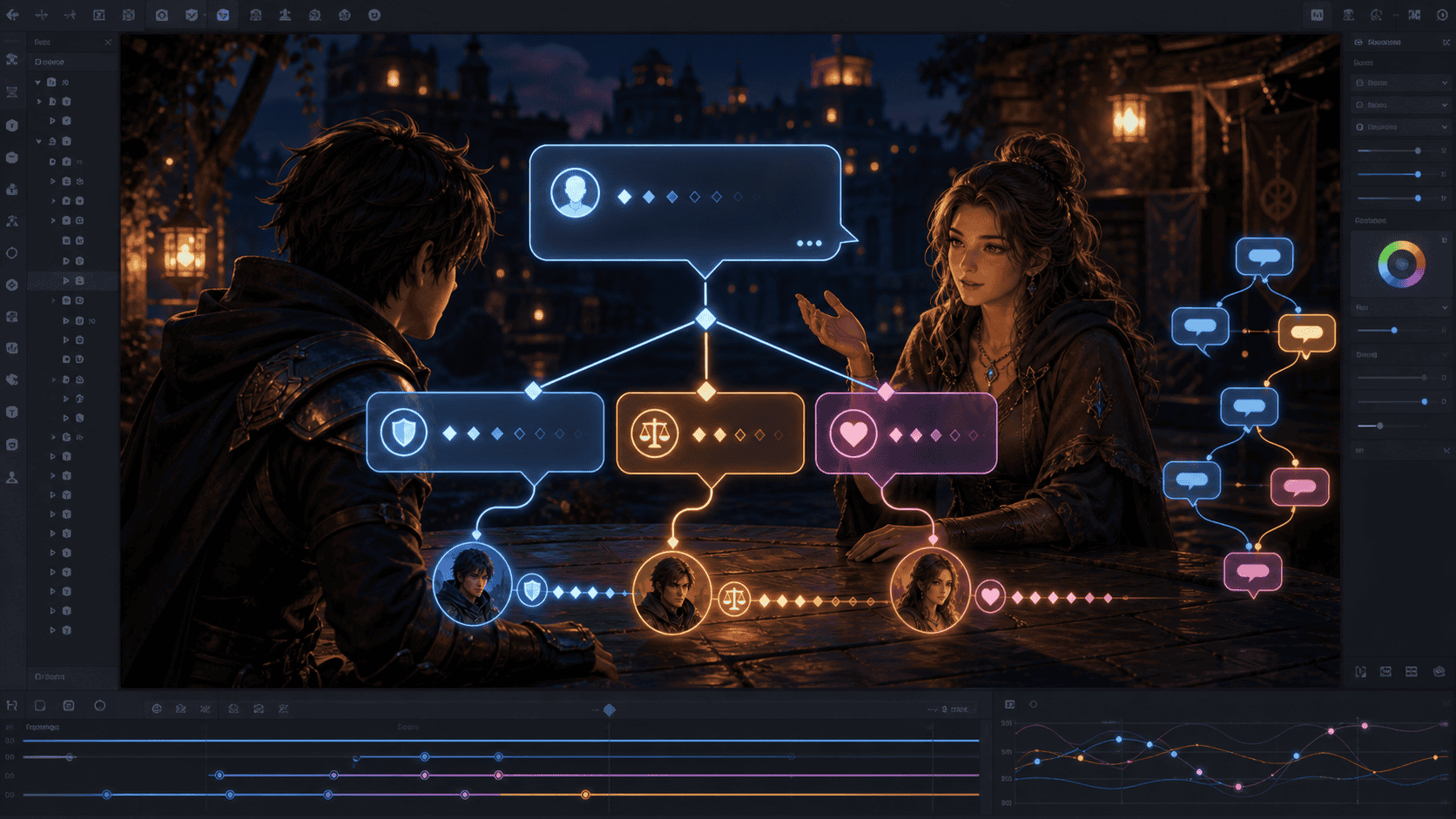
Quick Start
Start with a tiny working version
The most important part of dialogue UI is not fancy animation. It is making the next line of information and the next player action obvious.
Build it in small code pieces
1. 値を用意する
Inspectorで変更できる値と表示先を置きます。
csharp
    [SerializeField] private TextMeshProUGUI statusText;
    [SerializeField] private float choiceIndex = 1f;
    [SerializeField] private float affinityDelta = 2f;
[SerializeField] private float timeoutSeconds = 3f;2. 状態を変える
ボタンを押した時に、1つだけ状態を進めます。
csharp
    public void NextStep()
    {
        step = (step + 1) % 3;
        var label = step == 0 ? "質問を出す" : step == 1 ? "選択肢を選ぶ" : "結果を返す";
        if (statusText != null)
        {
            statusText.text = $"{label}\nchoiceIndex={choiceIndex:0.##}\naffinityDelta={affinityDelta:0.##}\ntimeoutSeconds={timeoutSeconds:0.##}";
}3. 画面に表示する
変わった結果を画面に出して確認します。
csharp
        if (statusText != null)
        {
            statusText.text = $"{label}\nchoiceIndex={choiceIndex:0.##}\naffinityDelta={affinityDelta:0.##}\ntimeoutSeconds={timeoutSeconds:0.##}";
        }
        Debug.Log($"会話選択肢UI: {label}");
Complete script
csharp
using UnityEngine;
using TMPro;

public class DialogueChoiceTutorial : MonoBehaviour
{
    [SerializeField] private TextMeshProUGUI statusText;
    [SerializeField] private float choiceIndex = 1f;
    [SerializeField] private float affinityDelta = 2f;
    [SerializeField] private float timeoutSeconds = 3f;

    private int step;

    public void NextStep()
    {
        step = (step + 1) % 3;
        var label = step == 0 ? "質問を出す" : step == 1 ? "選択肢を選ぶ" : "結果を返す";
        if (statusText != null)
        {
            statusText.text = $"{label}\nchoiceIndex={choiceIndex:0.##}\naffinityDelta={affinityDelta:0.##}\ntimeoutSeconds={timeoutSeconds:0.##}";
        }
        Debug.Log($"会話選択肢UI: {label}");
    }
}Inspector
Connect the UI reference in the Inspector, then use the button to confirm each value changes.
Summary
What to take away
How to make dialogue text readable, choices clear, and conversation flow smooth without relying on heavy effects.
The page is designed to help you move from reading to a small practical decision. Use the checklist above before jumping into the next related article.
Read next
ARTBrowse English articlesReturn to the English article index and choose the next topic by engine, tag, or workflow.CMPCompare game enginesCheck Unity, Unreal Engine, Godot, and Roblox from a beginner-friendly English comparison view.HOMEEnglish learning homeGo back to the English top page for tutorials, glossary entries, news, and learning routes.
Related guides
SYSThreat indicator and aggro readability design guideA practical guide to showing who enemies are targeting and where immediate danger is pointing without flooding the screen.MAPCapture point, overtime, and score visibility design guideA practical guide to making ownership, progress, score flow, and overtime rules easy to read in control-based game modes.